Features Walkthrough
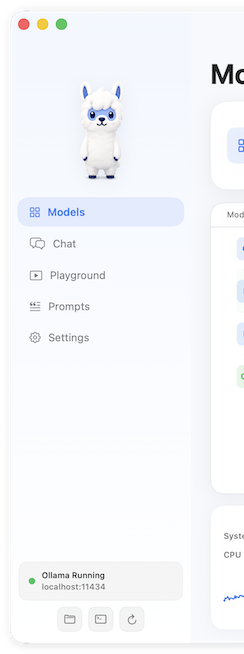
Persistent Sidebar
The sidebar is always visible and provides navigation to every part of the app:
- Mascot — App icon at the top (static in V1)
- Navigation — Models, Chat, Playground, Prompts, Settings
- Connection Status — Shows whether Ollama is running with a green/red status dot
-
Utility Buttons —
Folder (opens
~/.ollama/modelsin Finder), Terminal (Ollama commands), Refresh (rescans models)
Models Screen
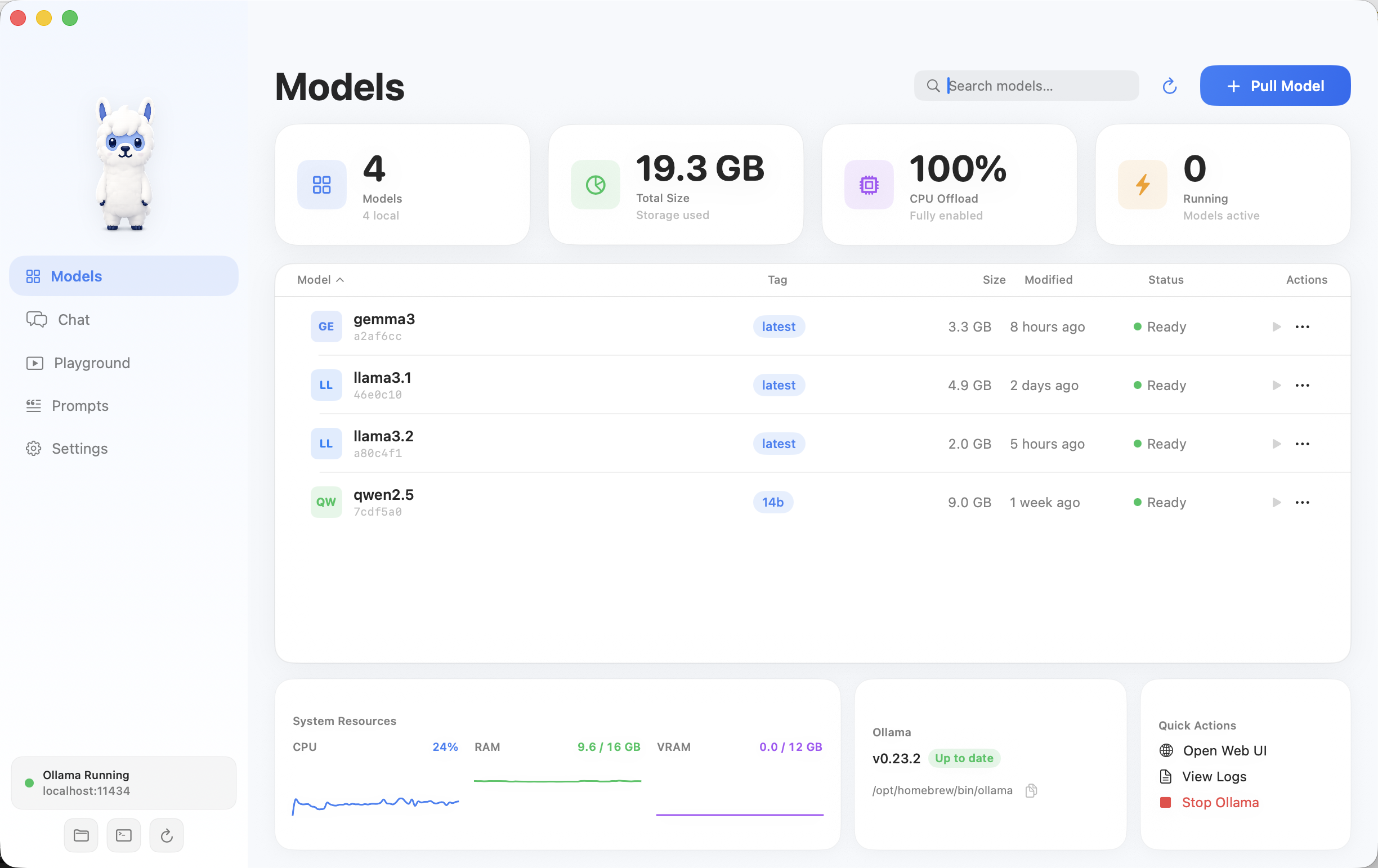
The primary interface for managing your local models.
Stat Cards
Four summary cards at the top:
| Card | Description |
|---|---|
| Total Models | Count of installed + updating models |
| Storage Used | Total disk space used by models |
| CPU Offload | Whether CPU offloading is fully enabled, partial, or disabled |
| Running Models | How many models are currently loaded |
Model Table
Each model row shows:
- Model Icon — Branded sprite based on the model family (Llama, Mistral, Gemma, etc.)
- Name & Tag — Model name with a tag pill badge
- Size — Disk size in GB
- Last Modified — Relative time ("2 hours ago")
- Status — Ready (green), Running (pulsing green), Downloading (blue with %), Error (amber), Missing (red)
- Actions — Play button (load model) + ellipsis menu (Chat, Playground, Duplicate, Rename, Copy, Reveal, Details, Export, Pull Latest, Delete)
Search
Fuzzy search filters by model name, tag, status, and hash.
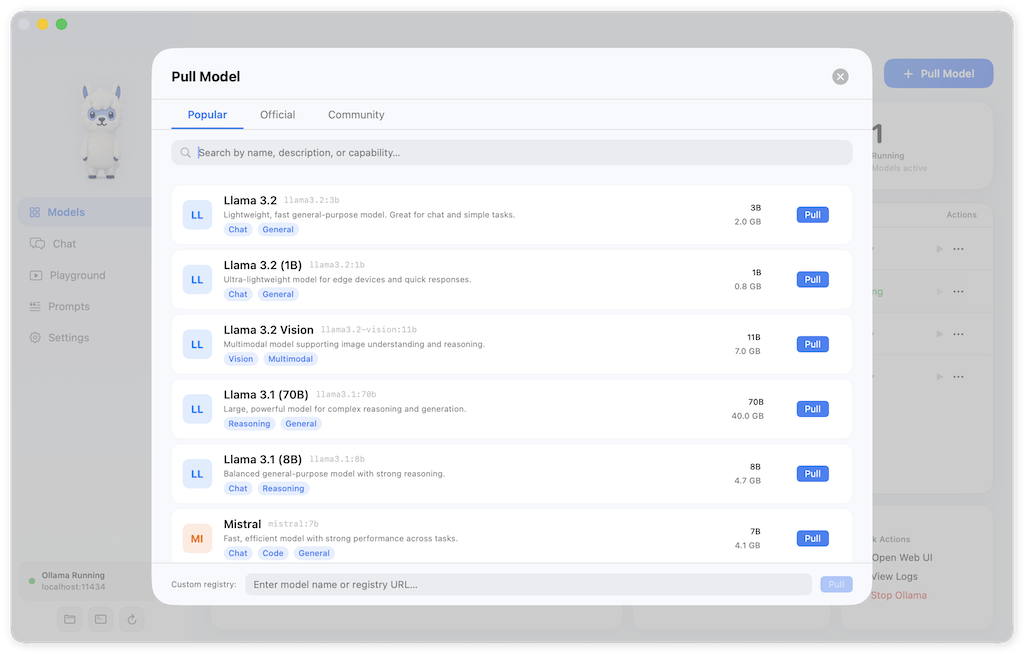
Pull Model Modal
Click Pull Model to open a large browseable modal (900-980pt × 680-760pt) with:
- Tabs — Popular, Official, Community (25 curated models)
- Search — Live filtering across all models
- Filters — Model Type, Size, Quantization, Capability
- Model Rows — Icon, name, description, capability tags, size, parameters, updated date, Pull button
- Download Progress — Inline progress bar, percentage, speed, ETA, Cancel button
- Custom Registry — Enter a model from a registry URL at the bottom
Chat Screen
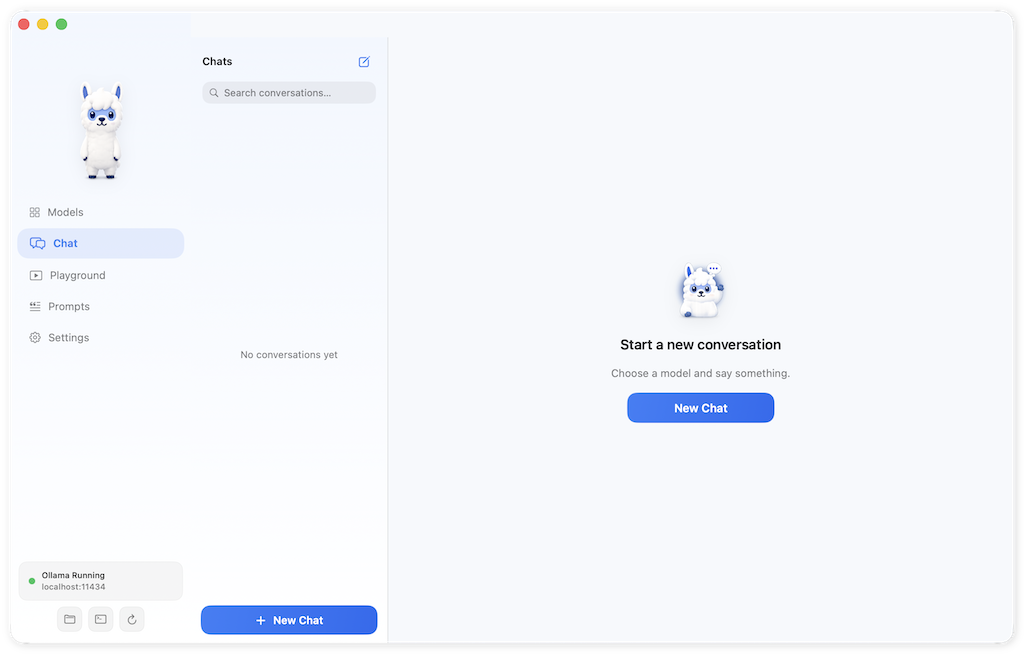
Three-panel layout for conversation management.
Conversation List
- Search — Filter conversations by title
- Groups — Today / Yesterday / Previous 7 Days
- New Chat — Button at the bottom of the list
Chat Window
- Model Selector — Dropdown in the header to choose which model responds
-
Message Thread —
Scrollable conversation with markdown
rendering
- Headings, bold, italic, inline code, fenced code blocks (with copy button and language label)
- Unordered and ordered lists, blockquotes, horizontal rules
- Per-Message Actions — Copy, thumbs up, thumbs down, speak
- Context Token Count — Footer showing token usage
- Markdown Input Box — Write messages with markdown preview
Persistence
All conversations are automatically saved to
disk via JSON persistence. They survive app
relaunch and are stored at
~/Library/Application
                                        Support/OllamaMate/conversations.json
.
Playground
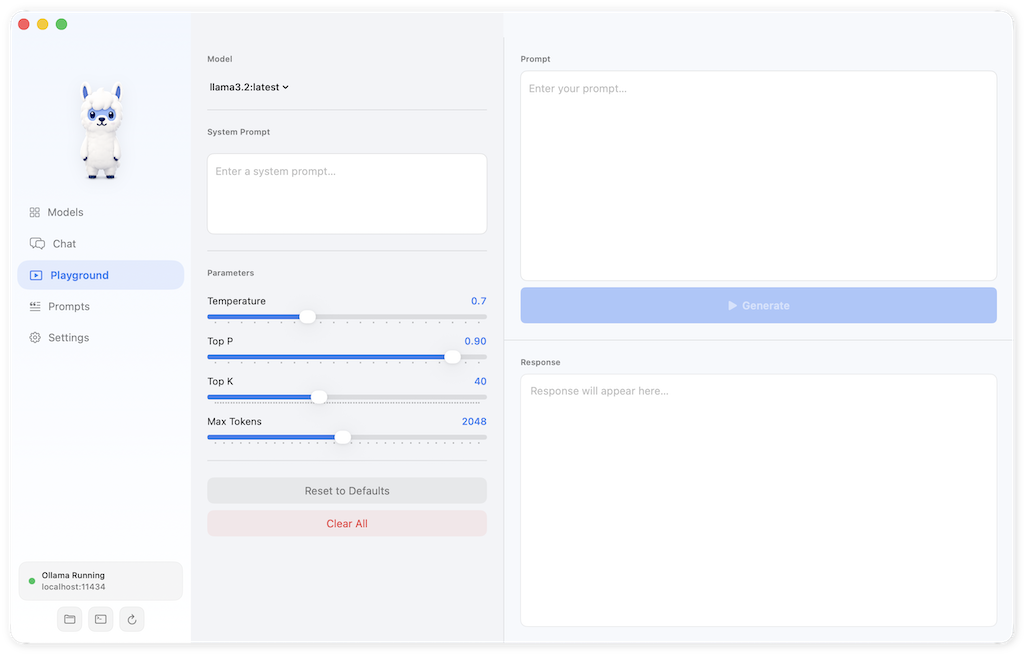
A two-pane layout for quick, ephemeral prompt testing:
- Left pane — Controls: model selector, temperature, top_p, top_k, system prompt
-
Right pane — Streaming
response output from
/api/generate - Ideal for testing parameter combinations before using them in Chat
Prompts Library
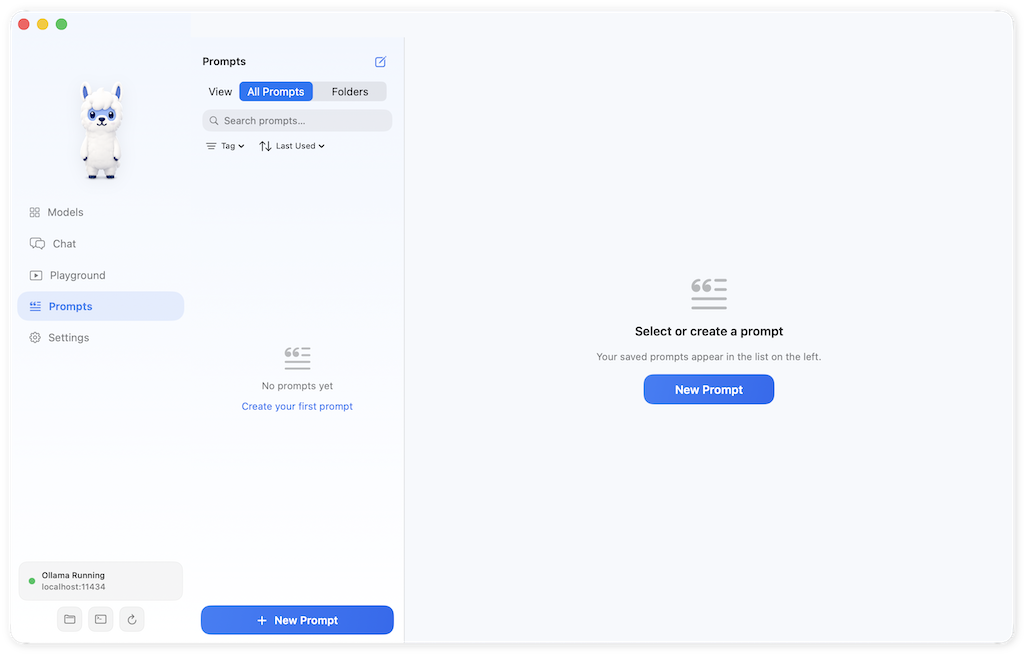
A three-panel layout for managing reusable prompt templates.
List Panel
- Header — Title, search, More menu, Settings gear, New Prompt button
- Tabs — All Prompts / Folders
- Tag Filter & Sort — Filter by tags, sort by various criteria
- Prompt Rows — Icon, title, description, tag pills, relative time, ellipsis menu
- Footer — Item count with pagination
Detail Panel
- Title — Large inline-editable title
- Description — Separate from template content
- Prompt Template — Monospaced editor with {{variable}} syntax support
- Variables — Auto-detected from {{variable}} patterns in the template; each variable renders as an editable input field
- Toolbar — Delete (red, with confirmation), Use in Chat, Use in Playground, Save (blue)
Metadata Sidebar
- Details Card — Icon, created date, last used, usage count
- Tags Card — Tag pills with add-tag input
- Folder Card — Folder assignment
Variable System
The variable parser scans prompt content for
{{variable_name}} patterns and
renders each unique variable as a labelled
input field. Substitution preview is coming
in a future version.
Mini Chat
A global hotkey feature that lets you ask questions without leaving your current app.
- Hotkey — ⌘⇧M (configurable in Settings)
-
Appearance — Floating
glass pill at the top-centre of the
screen
- Tinted blur background with gradient overlay
- Bright top-edge highlight stroke
- Dual shadows (deep black + accent blue glow)
- Behaviour — Opens in a transient panel that doesn't steal focus from your current app
- Conversations — Shares the same ChatViewModel as the main app; your mini chat history is accessible in the full Chat screen
- Dismiss — Press ESC to close

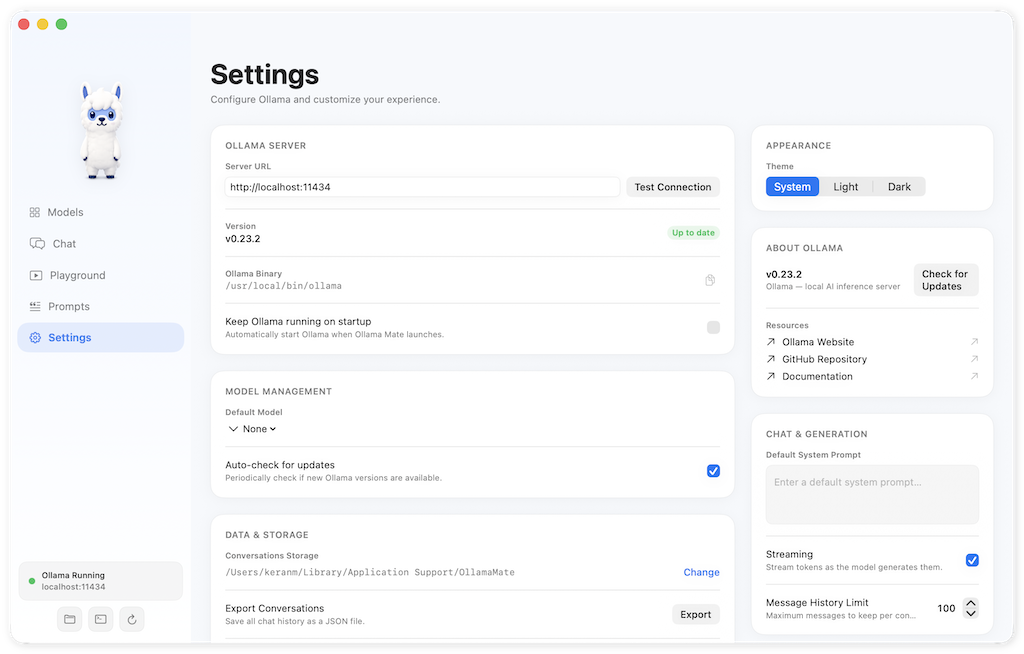
Settings
Ten configuration cards covering every aspect of the app:
- Ollama Server — Endpoint URL (default: http://localhost:11434), connection test button, port configuration
- Appearance — Light / Dark / System theme toggle
- Mini Chat — Hotkey recorder (tap to set), toggle enable/disable
- Model Management — Default model, auto-pull updates, storage location
- Chat & Generation — Default system prompt, streaming toggle, message history limit
- Data & Storage — Conversations storage path, clear history, export conversations
- Privacy & Telemetry — Analytics opt-in (off by default), crash reports
- About Ollama — Version info, what is Ollama, links to documentation
- Backup & Restore — Export/import all app data
- Danger Zone — Reset all settings, clear all conversations (with confirmation)