Installation & First Steps
Download
Download the latest
OllamaMate.dmg (coming soon).
Install
-
Open the downloaded
.dmgfile - Drag OllamaMate.app into your Applications folder
- Eject the DMG
Gatekeeper (First Launch)
Since OllamaMate is distributed outside the Mac App Store, macOS Gatekeeper will block the first launch:
- Right-click (or Control-click) OllamaMate.app in Applications
- Select Open from the context menu
- Click Open in the confirmation dialog
You only need to do this once. Subsequent launches work normally.
No Prerequisites
OllamaMate includes everything you need. The on-boarding wizard will:
- Automatically detect if Ollama is already installed and running
- Guide you through installing Ollama if it isn't found (no terminal needed)
- Let you browse and download your first model from within the app
- Get you up and running in minutes
You don't need to install anything beforehand or use the terminal at all.
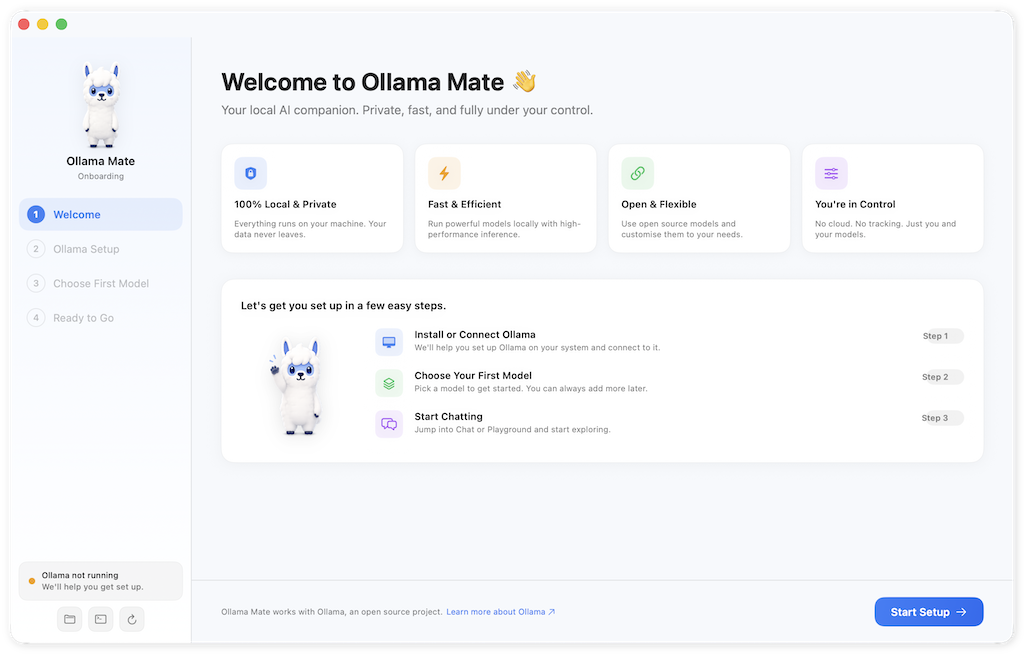
On-Boarding Wizard
On first launch, OllamaMate shows a 4-step on-boarding wizard:
- Welcome — App introduction with feature benefit cards
- Ollama Setup — Auto-detects a running Ollama daemon; shows setup instructions if not found
- Choose Your First Model — Browse and pull a starter model
- Ready to Go — Confirmation screen, then launch into the main app
After completing on-boarding, the main window opens with the Models screen selected.
Updating
To update OllamaMate, download the latest DMG and replace the app in your Applications folder. Your conversations, settings, and data are stored separately and will not be affected.
Troubleshooting
"OllamaMate can't connect to Ollama"
- OllamaMate shows the connection status in the sidebar
- If it says "Ollama Stopped", wait a moment — OllamaMate will attempt to start it automatically
- If the issue persists, go to Settings → Ollama Server and check the endpoint URL
- The default is http://localhost:11434 — change this if you use a custom port
App won't open (Gatekeeper)
Make sure you right-click and select Open rather than double-clicking. If you already double-clicked, go to System Settings → Privacy & Security and find the "OllamaMate was blocked" message.